
Connect a messenger
Together-Pad writes over your messenger. Connect it to your account once: in Together-Pad → Settings … → Accounts. Click + at the bottom left and choose the messenger.
Matrix
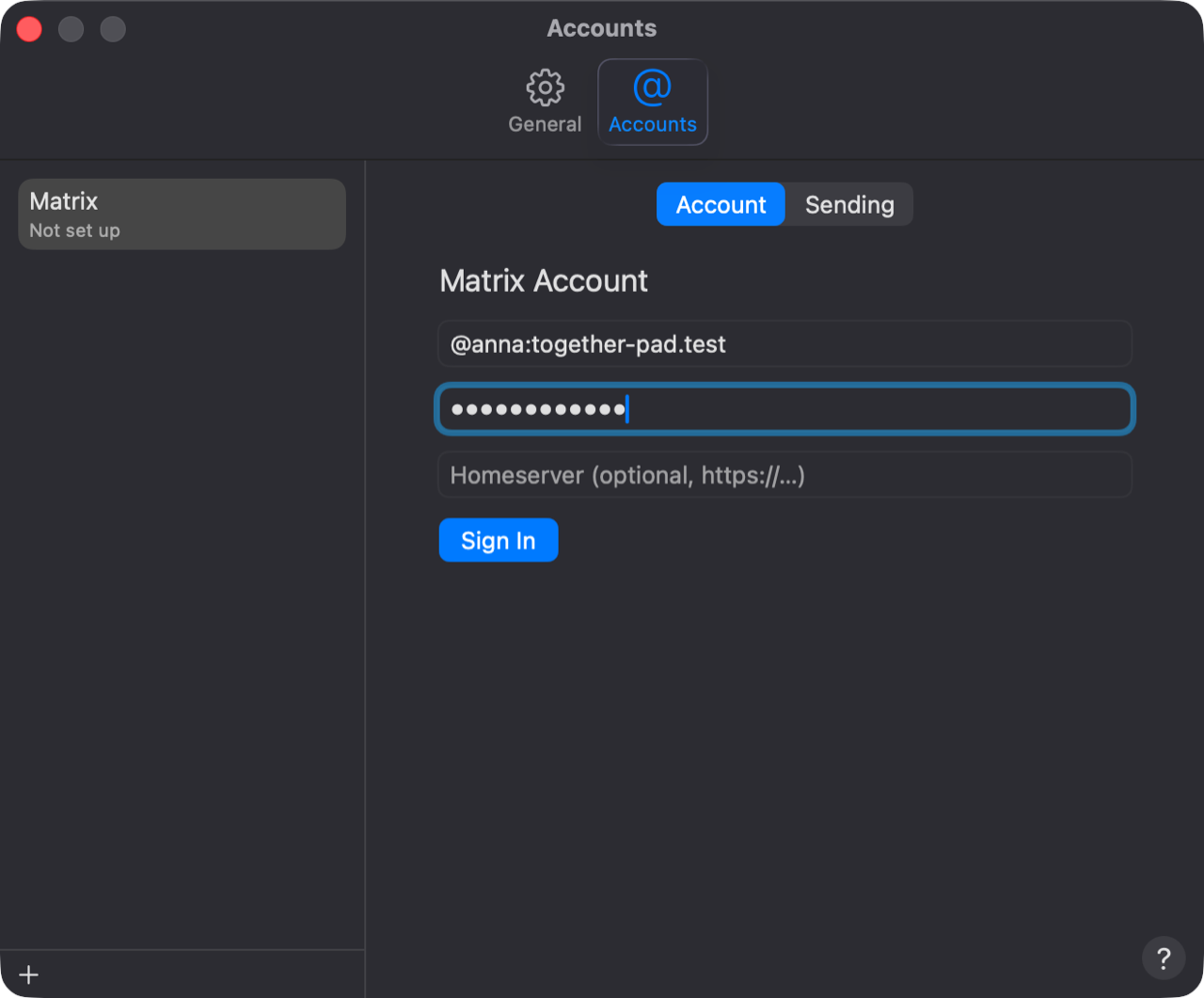
- Enter your Matrix ID (@name:server) and your password; the homeserver only if it doesn't follow from the ID.
- Click Sign In. Together-Pad is now a device of its own of your Matrix account.
- Confirm this Mac as the next section describes.
Confirm this Mac
Together-Pad is a new device of your Matrix account. Other Matrix apps such as Element may not show messages from a device you haven't confirmed – your invitations included. When you confirm, a Matrix app you're already signed in to vouches that this Mac really is yours.
- In Settings … → Accounts → Matrix, click Confirm … and then Send Request.
- Open your other Matrix app, Element on your phone for example, and accept the request.
- Click Compare Emoji. If both apps show the same emoji in the same order, click They Match and confirm it in the other app too.
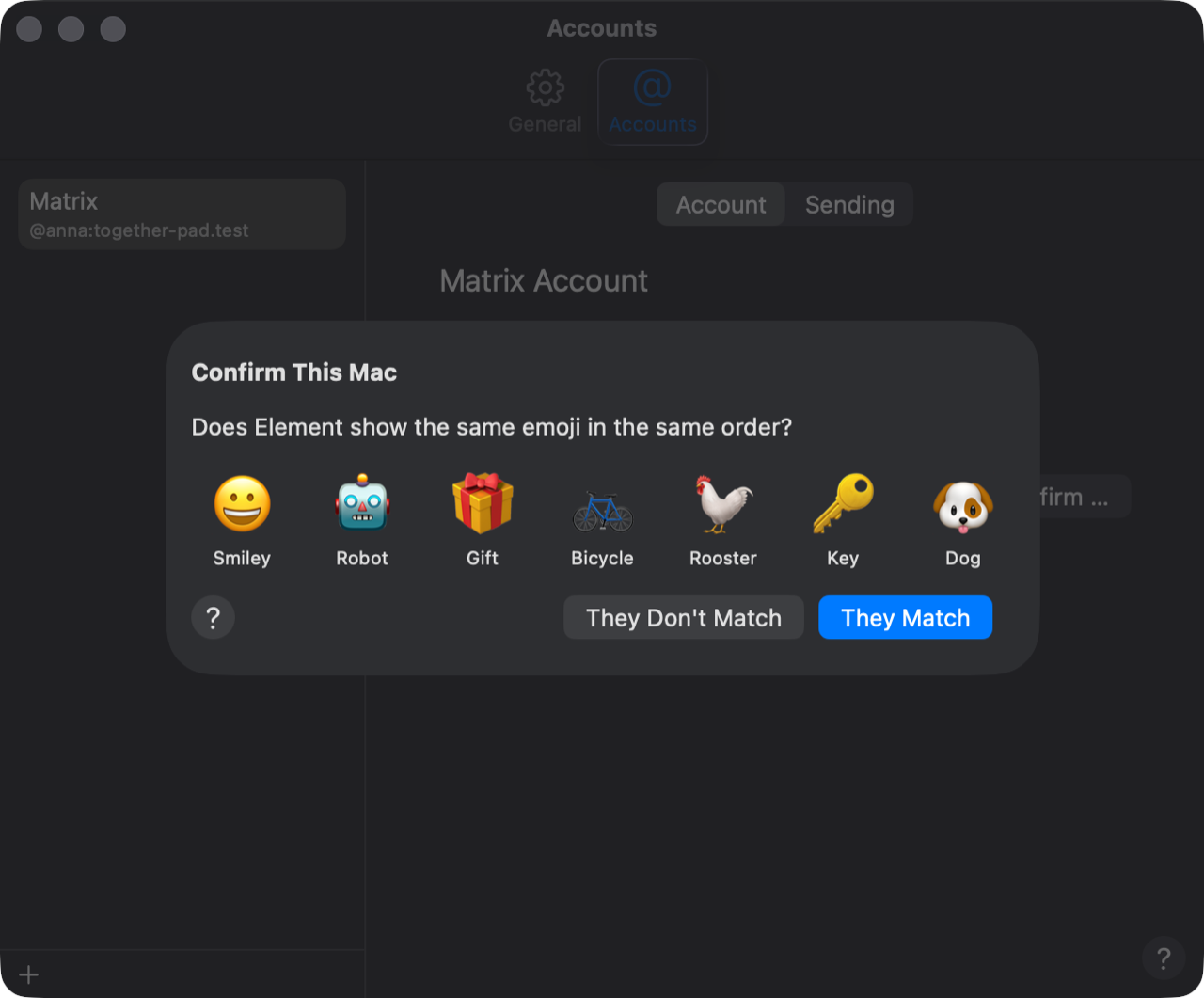
Instead of comparing emoji, you can choose Show QR Code and scan the code with the other app.
If the request doesn't arrive, open the other app and send the request again. If Together-Pad says your account has no encryption identity yet, set it up in the other app first (in Element under Settings → Security). Between Together-Pads it works without confirming too.
Signal
- Click Show QR Code.
- Open Signal on your phone: Settings → Linked Devices → Link New Device, and scan the code.
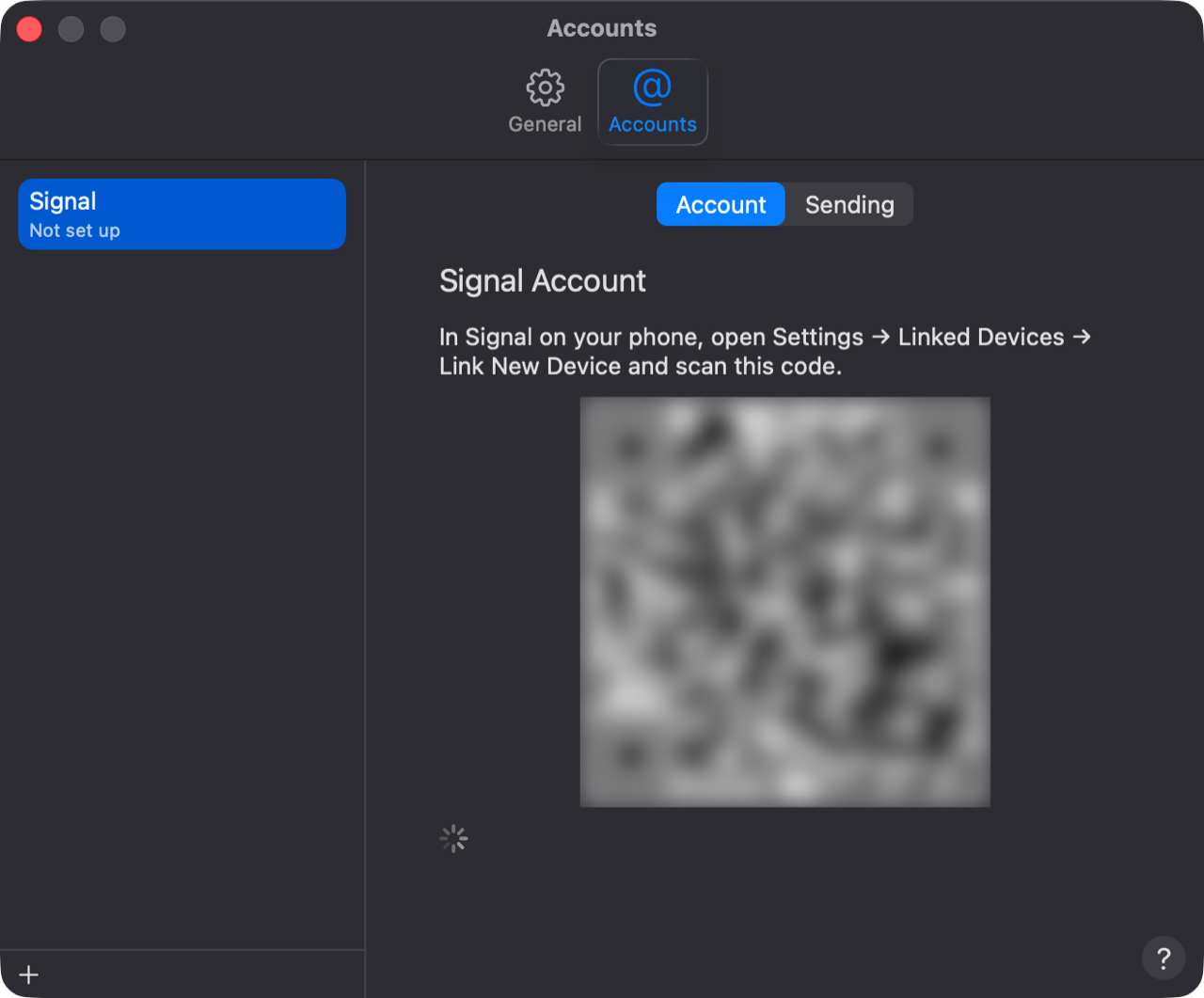
Together-Pad is then a linked device of your Signal account, like Signal Desktop. You can remove it there any time under Linked Devices.